Integrations
Namecheap Integration
Connect your Namecheap account in Uplinkly to use your own Namecheap API credentials in supported domain-related workflows inside the platform.
Subscription Requirement
The Namecheap integration is available only on a paid subscription plan. If you are using the free plan, the integration flow is not intended for active use.
To connect your own Namecheap account, you need an active paid subscription.
Where to Configure the Integration
The Namecheap connection is configured from the Uplinkly settings page:
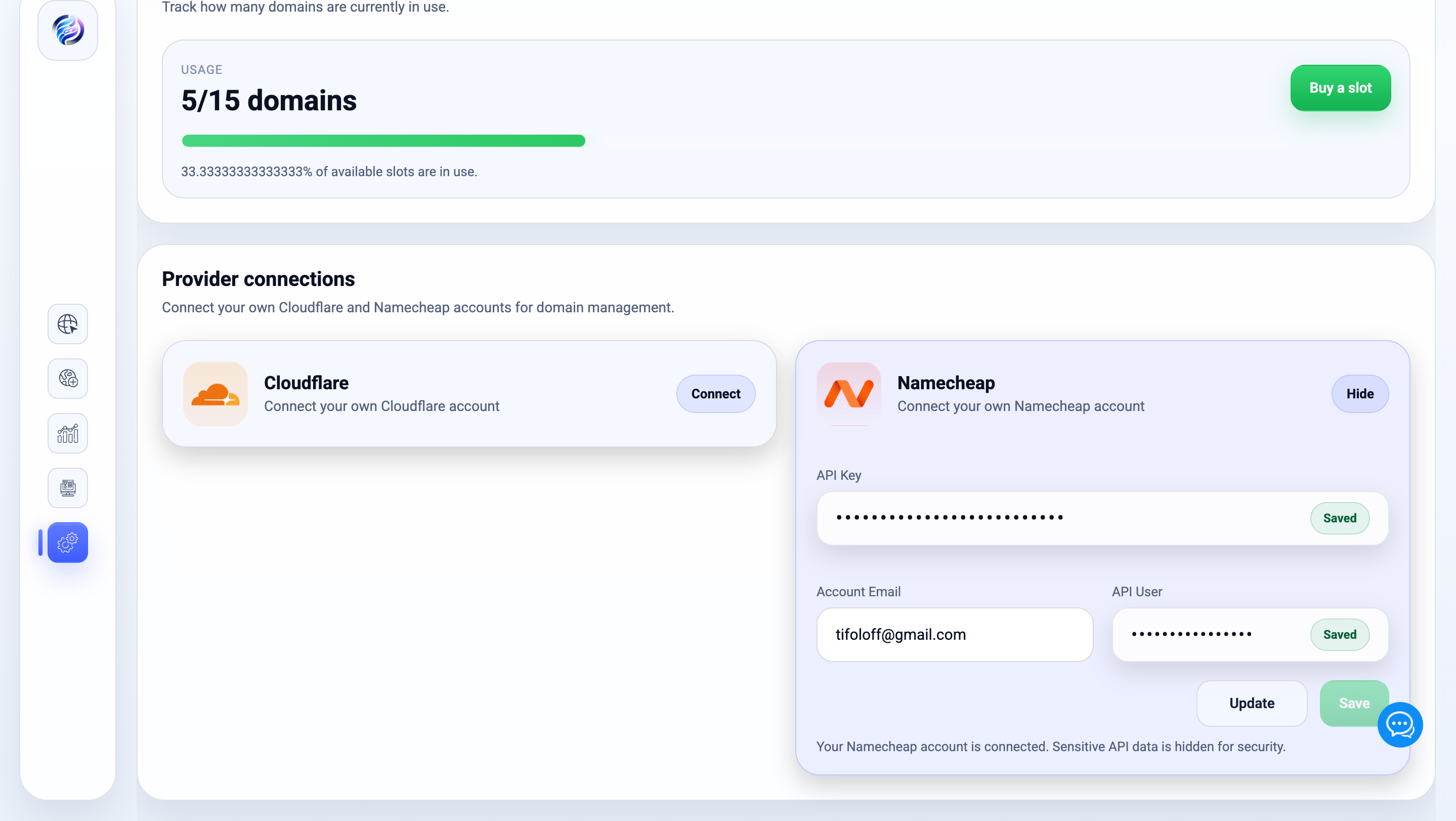
Open the settings page, find the Namecheap integration block, expand it, and enter the required account data there.
What You Need Before Connecting
Before starting the integration, prepare the required Namecheap account data.
- Namecheap account email
- API user
- API key
Uplinkly checks the credentials before allowing them to be saved, so it is important to prepare the correct values first.
Enable API Access in Namecheap
Before your Namecheap credentials can be used in Uplinkly, API access must already be enabled for your Namecheap account. If API access is not enabled on the Namecheap side, verification inside Uplinkly will fail.
Make sure you are using the correct API user and API key from your Namecheap account, not just the normal login credentials.
Add the Uplinkly Server IP to the Namecheap Whitelist
Namecheap API access depends not only on valid credentials but also on IP whitelisting. You must add the Uplinkly server IP to your Namecheap allowed IP list, otherwise the API request will be rejected even if the API key itself is valid.
Add the Uplinkly server IP to the Namecheap API whitelist before running verification. Otherwise the integration check may return an Invalid request IP error.
How to Connect Namecheap in Uplinkly
- Open the Settings page in your Uplinkly account
- Find the Namecheap integration block
- Expand the Namecheap section
- Enter your Namecheap account email
- Enter your API user
- Paste your API key
- Click Check to verify the credentials
- After successful verification, click Save
Once the credentials are saved successfully, the Namecheap connection will be shown as connected in the settings page.
Namecheap Integration Block in Uplinkly
Common Verification Issues
If the Namecheap credentials are not verified successfully, the problem is usually one of the following:
- The API user is incorrect
- The API key is incorrect or copied with extra spaces
- API access is not enabled in the Namecheap account
- The Uplinkly server IP was not added to the Namecheap whitelist
- The account does not currently have the required subscription access in Uplinkly
If you receive an IP-related error during verification, check the whitelist first before changing the API credentials.
Why Use Your Own Namecheap Account
Connecting your own Namecheap account allows supported domain-related actions to run through your own provider credentials instead of depending only on the default platform setup.
- Use your own provider credentials in supported flows
- Keep operations aligned with your own Namecheap environment
- Work with a setup that is closer to your own domain management structure
Related Pages
After connecting Namecheap, these pages are usually the next useful steps.